
Setting up a Python Development Environment in Windows
Here’s how you can setup a Python development environment in Windows, the easy way!
Hello and welcome to Python Help!
Today, we’re going to talk about how to set up a Python environment in Windows. Python is a powerful programming language that is used by developers and data scientists all over the world, and setting up a Python environment in Windows is a crucial step for anyone who wants to start learning or developing with Python.
Here’s how to get started:
Download Python:
The first step in setting up a Python environment in Windows is to download the latest version of Python from the official Python website. Once you’re on the website, simply click the “Download” button, and select the appropriate version of Python for your system.
Install Python:
Once you’ve downloaded the Python installer, double-click on it to begin the installation process. The installer will guide you through the process of installing Python on your system, and you can choose to customize the installation if you wish.
Add Python to PATH:
After installing Python, you’ll need to add it to your system’s PATH environment variable so that you can run Python from the command line.
To do this, open the Control Panel and navigate to System and Security .
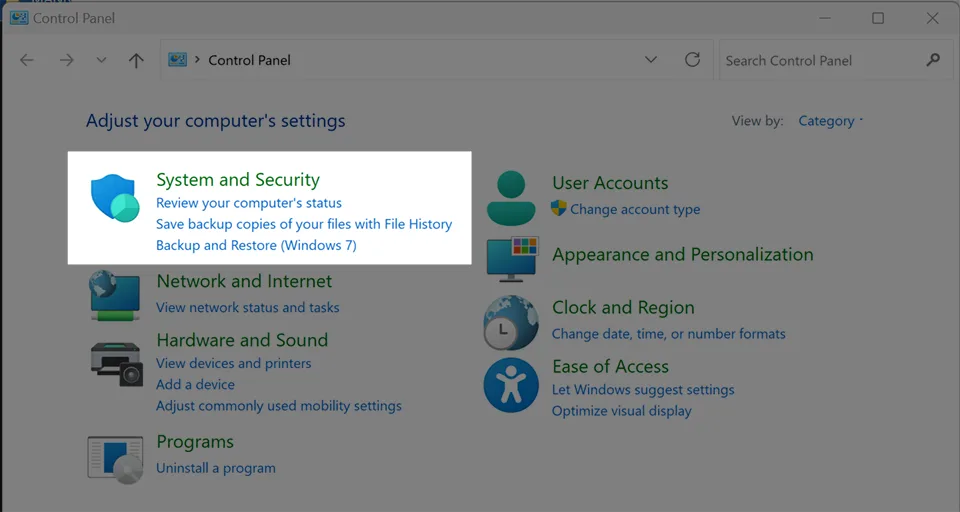
Then click on System:
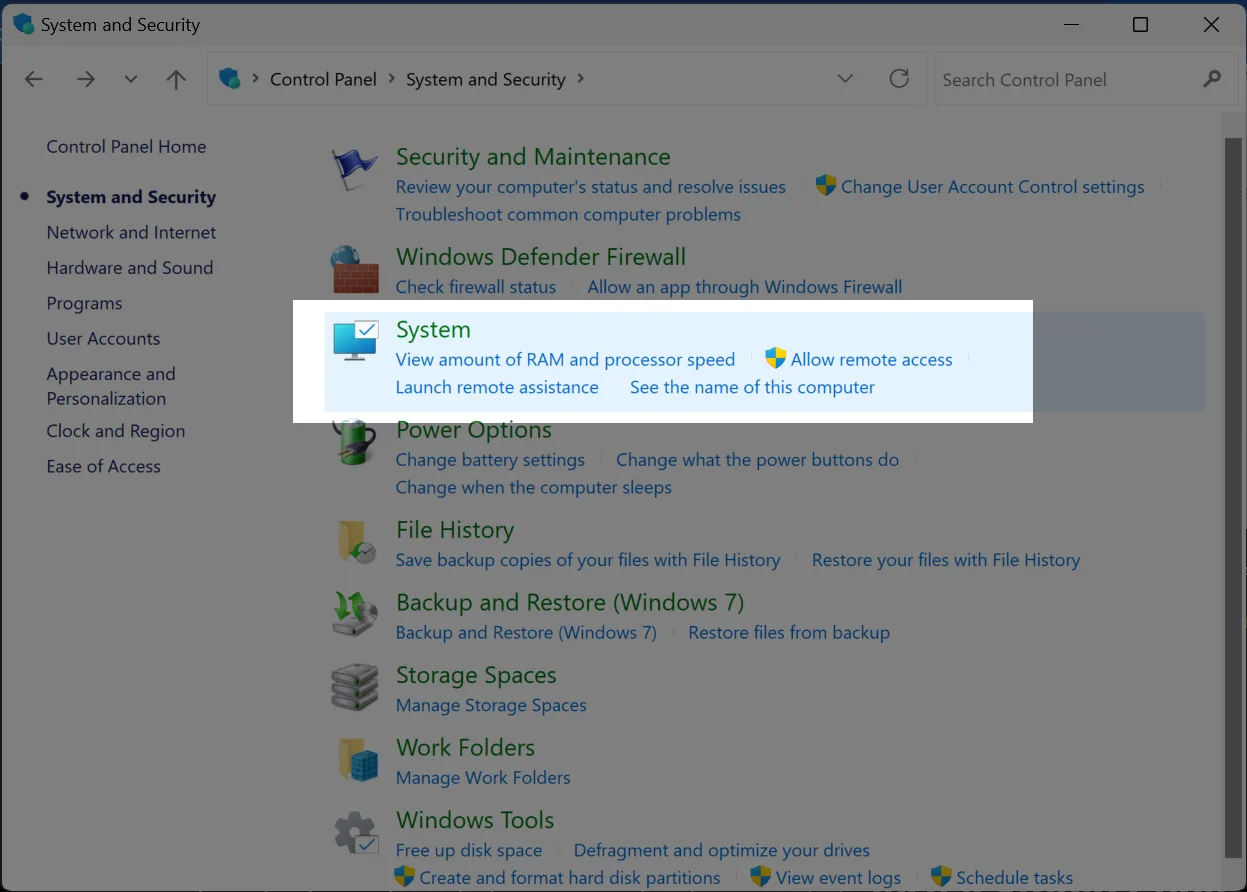
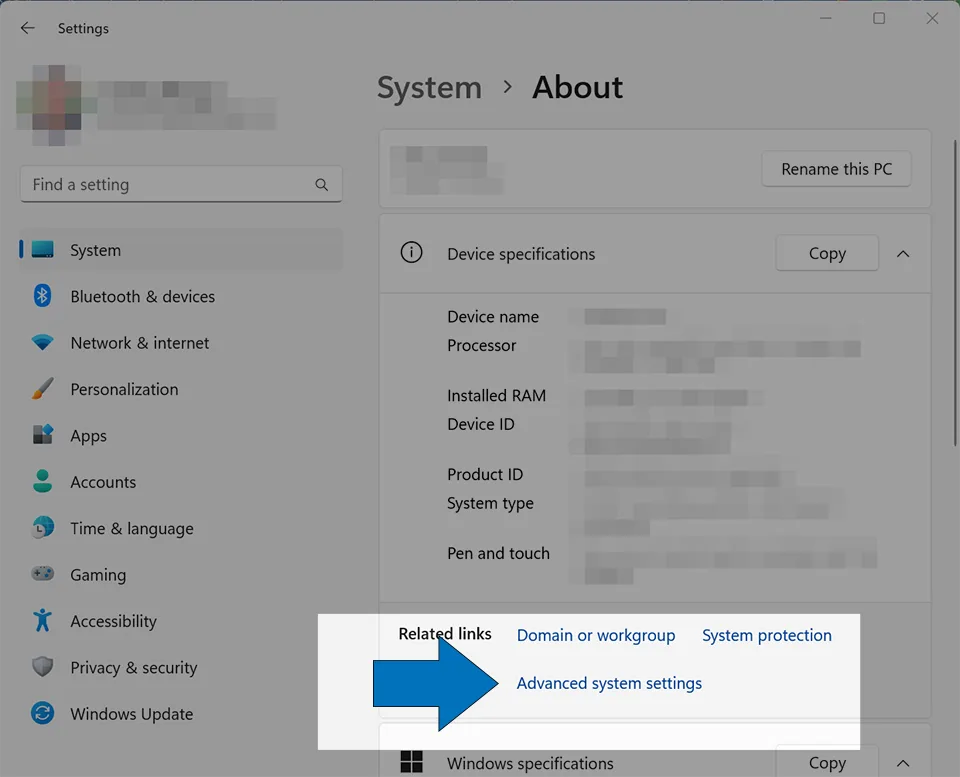
Select “Advanced System Settings” Here
Click the “Environment Variables” button:
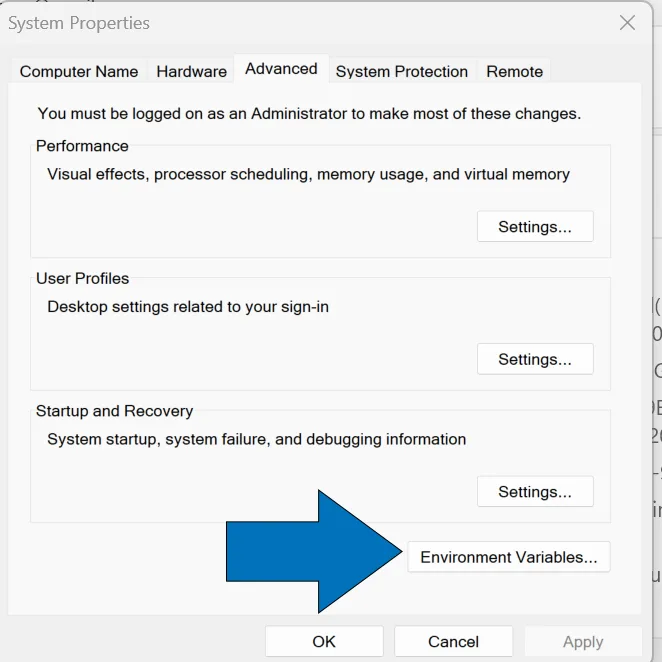
then scroll down to the “System Variables” section:
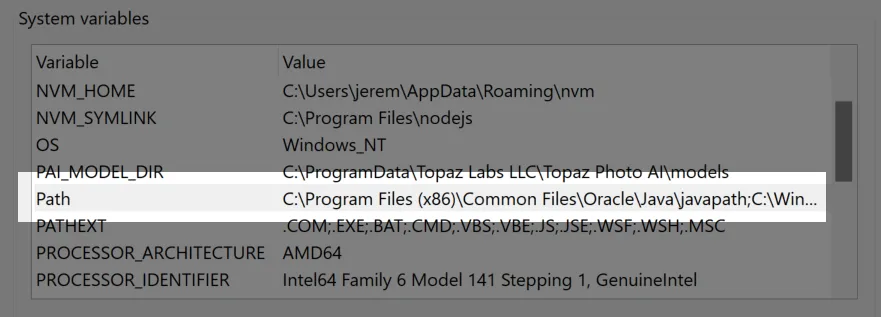
and find the “Path” variable.
Click “Edit” and then add the path to your Python installation directory to the list of paths.
Install a text editor or IDE:
To write and run Python code, you’ll need a text editor or integrated development environment (IDE). There are many options to choose from, but some popular choices include Visual Studio Code, PyCharm, and Sublime Text.
Test your Python installation:
To make sure that your Python installation is working correctly, open a command prompt and type
python --version
This should display the version of Python that you installed.

You can also type “python” to enter the Python interactive shell, where you can run Python code directly in the command prompt.
Enjoy coding in Python in Windows!
And that’s it! With these steps, you should now have a working Python environment on your Windows system. From here, you can start learning Python or developing your own Python applications. Good luck, and happy coding!
AI Is Changing Software Development. This Is How Pros Use It.
Written for working developers, Coding with AI goes beyond hype to show how AI fits into real production workflows. Learn how to integrate AI into Python projects, avoid hallucinations, refactor safely, generate tests and docs, and reclaim hours of development time—using techniques tested in real-world projects.